
Context: the message is fine, the attachment isn’t
A lot of WhatsApp messages that matter carry a file. An invoice as a PDF. A product photo on a promo. A short video showing how to set something up. A boarding pass, a menu, a price list.
When those sends fail, it’s rarely the words. It’s the file. The image is a WebP someone saved from a website. The video came straight off an iPhone. The PDF sits behind a login. The header on your approved template expects a document and someone picked an image.
WhatsApp is strict about media, and the rules are spread across several pages of Meta’s docs. Most BSP help centres (Wati, Gupshup, CM.com, HighLevel and others) copy Meta’s table and leave it there. The table matters, so it’s below. But this post is mostly about the stuff around the table: which limits actually catch people out, what the errors mean and how to set up your files so they send first time.
Problem: tight limits, picky formats and late errors
The limits, in plain English
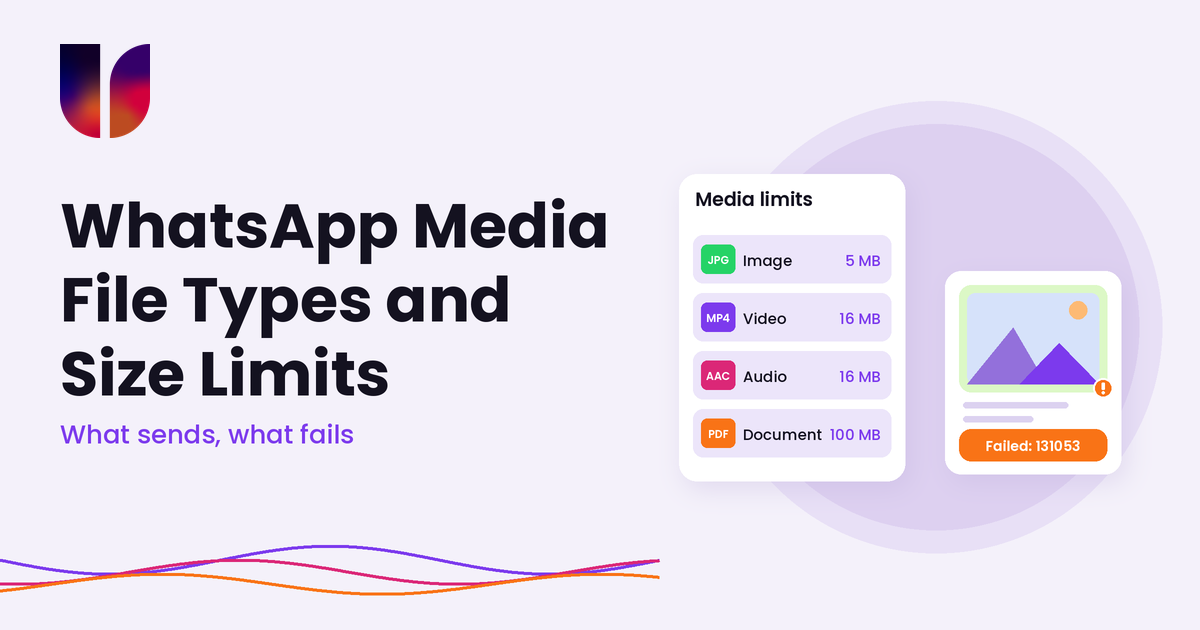
Here is what Meta’s media docs list for the WhatsApp Business Platform.
Images
- JPEG and PNG only
- 5 MB maximum
- Must be 8-bit, RGB or RGBA
Video
- MP4 and 3GPP
- 16 MB maximum
- H.264 video codec and AAC audio codec only, with one audio stream or none
Audio
- AAC, AMR, MP3, M4A and OGG
- 16 MB maximum
- OGG must use the OPUS codec and be mono. Plain OGG isn’t supported.
Documents
- PDF, Word (.doc, .docx), Excel (.xls, .xlsx), PowerPoint (.ppt, .pptx) and plain text
- 100 MB maximum
- Meta says only these types are officially supported and guaranteed to display properly. Other files may go through, but they may not behave as you expect.
Stickers
- WebP only
- 100 KB for a static sticker, 500 KB for an animated one
Captions on images, videos and documents can be up to 1,024 characters. Documents can carry a filename, and the WhatsApp app picks the icon from the file extension, so “invoice-1043.pdf” looks a lot better than “download (3)”.
The limits that actually bite
On paper, 100 MB for a document sounds generous. In practice three limits cause most of the trouble.
The 5 MB image cap. Phone cameras and design tools happily export images well over 5 MB. A product shot exported at full resolution for print will fail on WhatsApp.
WebP is only for stickers. Meta’s docs are clear: WebP images can only be sent as stickers. Lots of websites and image tools now save as WebP by default. HighLevel’s help page gives a real example of the error you get back: “Unsupported Image mime type image/webp. Please use one of image/png, image/jpeg.”
Video codecs. A video can be an MP4 under 16 MB and still fail or play badly. Meta notes that videos encoded with the H.264 “High” profile and B-frames aren’t supported by Android WhatsApp clients. It recommends the “Main” profile without B-frames, or the “Baseline” profile. It also suggests putting the file’s index at the start, which in ffmpeg is the -movflags faststart flag. Many phone and editing apps export with settings that break these rules, and nobody notices until the Android half of your audience can’t watch.
A file can be the wrong thing and still look right
Meta’s media page calls out a mismatched MIME type (error 131053) as a common error. The MIME type is what the file actually is, not what its name says. A WebP renamed to “photo.jpg” is still a WebP. A PDF served by a website that labels it as a generic download may not be read as a PDF.
If you send by link rather than uploading, the server hosting the file matters too. Twilio’s guidance says it checks the content-type header at the media URL, and if that header doesn’t match the actual file, the request is rejected. Twilio’s error 63019 (“Media failed to download”) covers files that come back empty, URLs that don’t serve the expected file and media that breaks the channel’s type or size rules. Error 63021 (“Channel invalid content”) covers content the channel won’t accept, including media of the wrong type or size.
Template headers have their own rules
Media in a marketing or utility template sits in the header. Meta allows image, video, GIF or document headers, uploaded when the template is created. Two things catch teams out:
- The header type is fixed when Meta approves the template. If the approved template has an image header, you can’t send a PDF in it. You need another template.
- Not every platform supports every header type. Wati, for example, says only PDF documents work in template messages and audio can’t be used in templates at all. Check what your own platform supports before you design a campaign around a video header.
We covered the wider approval process in our template approval and rejection guide.
The error often arrives later
As with most WhatsApp problems, a send can be accepted and then fail. Meta’s image message docs say a request fails if the media ID is invalid or expired, the format isn’t supported or the file is too big. Some of those fail straight away. Others come back in a status update with 131053 and a detail field explaining why. If your reporting only looks at whether the API accepted the message, you’ll miss them.
Incoming media has limits too
This isn’t only about what you send. Meta’s docs say the most a customer can send you through the Cloud API is 100 MB. Anything bigger triggers error 131052, and Meta suggests telling the customer the file is too big. If your team asks customers to send photos of damage, documents for an application or proof of payment, be ready for the occasional file that never arrives.
Insight: treat media like any other part of the message you check before sending
None of this is hard once it’s part of the routine. The teams that don’t have media problems aren’t luckier. They just check files the same way they check copy.
1. Keep a small set of approved file presets
Agree on a handful of settings and stick to them:
- Images: JPEG or PNG, sized for a phone screen, comfortably under 5 MB. For most promos, a file well under 1 MB looks fine.
- Video: MP4, H.264 Main or Baseline profile, AAC audio, no B-frames, fast start on, under 16 MB. Short clips work better anyway.
- Documents: PDF unless the person really needs to edit the file. Give it a clear filename with the right extension.
If someone on the team exports from a design tool, make the preset part of the brief.
2. Check what the file really is
Don’t trust the extension. Meta suggests a command like file -I photo.jpg on Mac or Linux to see the true MIME type. Most image editors will also tell you the format when you re-save. If a file came from a website, assume it might be WebP until you’ve checked.
3. Be kind to people’s data
A file that’s technically allowed can still be a bad idea. CM.com’s docs point out that people may be paying for mobile data, and recommend keeping files under 1 MB where you can. A 15 MB video sent to 5,000 people on a Monday morning is a lot of someone else’s data. Compress, trim and send a link to the long version if you have one.
4. Prefer uploaded media over links
Meta recommends uploading media and sending the media ID rather than pointing at a hosted URL, for better performance. If you do use links, make sure the file is public, doesn’t need a login, isn’t behind a redirect that expires and is served with the right content type. Also bear in mind that uploaded media on Meta’s side doesn’t last forever: media IDs from uploads expire after 30 days.
5. Match the file to the approved header
Before a campaign goes out, check the template’s header type and pick a file that matches. An image header needs an image, a document header needs a document. If marketing wants to switch from a PDF flyer to a photo, that’s a new template and a new approval, so plan for it.
6. Read the media errors separately
When failures come back, keep media errors apart from audience errors:
- 131053: Meta couldn’t process the media you sent. Check the type, size and codec, then fix the file.
- 131052: you couldn’t download media a customer sent. Usually too big. Ask them to send a smaller file or use another channel.
- 63019 or 63021 on Twilio: the file couldn’t be fetched or doesn’t fit the channel’s rules.
- 131026: nothing to do with the file. The person can’t receive messages. See our error 131026 guide.
If a whole campaign fails with a media error, it’s the file. If a handful fail with 131026, it’s the list.
7. Test on an Android phone and an iPhone
Send every new template, and every new video, to a test number on both before a big send. It takes two minutes and catches the codec and preview problems that never show up on the computer you made the file on.
What UnifiedSend does, and what it doesn’t
UnifiedSend connects to WhatsApp through Twilio and Meta Embedded Signup, so the media rules above are Meta’s and Twilio’s, not ours.
What sits with Meta and Twilio:
- Which file types and sizes WhatsApp accepts
- Approving template headers, and keeping the header type fixed after approval
- Delivering the file and reporting media errors
What sits with UnifiedSend:
- A Media library in the main menu, part of core messaging with no add-on. You can upload photos, PDFs, video and office files and preview them.
- Choose from library on templates, campaign header overrides, inbox template sends and commerce product images, so you reuse a file instead of uploading it again. Uploads from those screens land in the library too.
- Pickers that only show the file types each screen allows. WhatsApp template headers in UnifiedSend accept an image or a PDF.
- On newer templates, the file in a media header can be swapped at send time, so the same approved template can carry this week’s product photo or this month’s statement. The header type (image or document) stays locked to what Meta approved. Older templates created with a fixed media URL can’t change the file.
- Deleting from the library hides the file, but files already used on a template or product keep working.
What sits with you: exporting files in the right format and size, picking a file that matches the approved header, and testing before a big send.
We’d rather be upfront about the limits. In this version, video and general files stay on the Media page and you can’t send a library video as a free-form inbox attachment. Template headers are image or PDF, not video. There are no folders or tags in the library yet. We don’t claim automatic compression, format conversion or size checks before send, so stick to the presets above.
Outcome: media that sends the first time
WhatsApp media rules are strict but they don’t change much. Images are JPEG or PNG under 5 MB. Video is MP4 with H.264 and AAC under 16 MB. Audio is under 16 MB. Documents are under 100 MB, ideally PDFs with a sensible filename. WebP is for stickers only.
Most media failures come from a handful of causes: a file that’s secretly a different format, a video from a phone with the wrong codec settings, a link the platform can’t reach and a header type that doesn’t match the approved template. Set presets, check the real file type, match the header and test on two phones, and 131053 becomes a rare sight.
If you’d like one place to keep your campaign images and PDFs, reuse them across templates and the inbox and watch delivery on every send, try UnifiedSend.
Leave a Reply